Mammut Checkout: Verify Amounts After Currency Switch
- Published
- Revised
- Editors
- Marcus Hale · Editor-in-Chief
Introduction When browsing Mammut products on Fashionreps, the reference amount shown on the product page is not the final amount due on the external shopping agent's checkout page. Changes in product, quantity, size, or color, as well as the checkout currency, may affect the subtotal, service fees, payment amount, and subsequent order terms. This article addresses a single question: after switching the checkout currency, how
Editor score 4.2 / 5
Introduction
When browsing Mammut products on Fashionreps, the reference amount shown on the product page is not the final amount due on the external shopping agent's checkout page. Changes in product, quantity, size, or color, as well as the checkout currency, may affect the subtotal, service fees, payment amount, and subsequent order terms. This article addresses a single question: after switching the checkout currency, how can you confirm that the amounts and order terms are still correct?
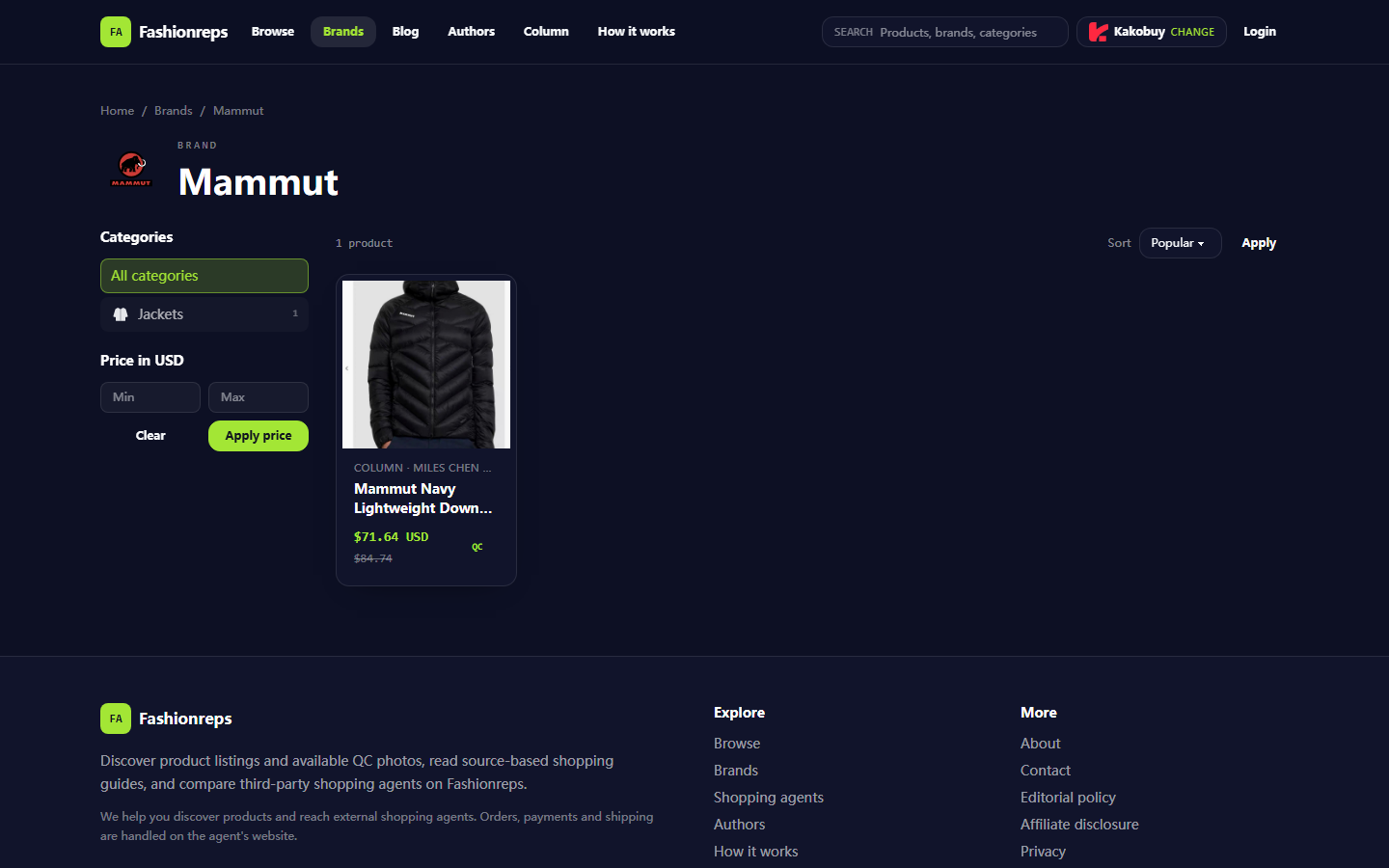
Verification date: October 23, 2026. This article does not treat the Fashionreps product display page as the agent's checkout page, nor does it claim that the target site is currently malfunctioning. The Fashionreps page shows that under the Mammut brand, there is a down mid-layer product with a page reference amount of $71.64, originally $84.74; this information is for product identification only and cannot directly replace the checkout page amount.

Defining Verification Goals After Currency Switching
You need to confirm that the same product, quantity, and variant, after switching currencies, still correspond to the same order draft, and that the final amount due and order terms displayed on the page are acceptable.
After reading this article, you should be able to perform three actions:
- Save records of product, quantity, variant, and amounts before and after switching.
- Distinguish between normal conversion differences, fee changes, and order term resets.
- Pause payment when information is inconsistent, and gather sufficient page evidence.
This article does not apply to determining whether a certain currency is always cheaper, nor to bypassing payment verification, evading taxes or fees, or inferring undisclosed import charges.
Save Product, Quantity, Variant, and Page Amount Before Switching
Do not rush to switch currency or pay. Record the current page's product name, product link, quantity, size, color, and other variants. If the page shows seller, product ID, or notes, save those as well.
For Mammut products, at least confirm that the following remain consistent:
- Product name and style description.
- Whether quantity is still the original quantity.
- Whether size, color, or other variants still have clear options.
- Product subtotal and displayed currency.
- Any visible discounts, offers, or note status.
It is recommended to capture a full-page screenshot including product information and amounts, and include time and currency in the filename, e.g., mammut-before-currency-2026-10-23-usd. Do not save only cropped numbers, because a standalone amount cannot prove which product it corresponds to.
Record Displayed Currency and Query Time on Checkout Page
After switching currency, record the actual currency symbol, currency code, exchange rate explanation, and page update time. If the page only shows a symbol without a clear code, do not judge the currency solely by the symbol; USD, AUD, and other currencies may use similar symbols.
Also record:
- The country or region setting used for the query.
- Whether the checkout page requires re-selecting the shipping address.
- Whether the page shows exchange rate source, conversion time, or rate disclaimer.
- Whether payment methods are still selectable.
- Whether coupons, balances, points, or other deductions are still active.
If the page does not provide an exchange rate explanation, do not calculate the rate by dividing two amounts and present it as official. Your calculation is only for internal comparison and does not prove the platform uses that rate.
Compare Amount Breakdown Before and After Switching
Do not compare only the final total. Break down the amount into product subtotal, visible service fees, shipping, taxes, or other fees, and check each for changes.
| Check Item | Record Before Switching | Confirm After Switching |
|---|---|---|
| Product subtotal | Product, quantity, variant, and original currency amount | Product, quantity, variant unchanged; converted amount has clear currency |
| Service fees | Whether displayed and in which currency | Whether newly added, removed, or billing conditions changed |
| Shipping, taxes, and other fees | Whether displayed, or noted as to be calculated | Whether new amounts or applicable conditions appear |
| Final amount due | Page total before payment | Whether it can be reasonably composed of listed items |
If after switching only the currency changes, but fee items, quantity, and order terms remain consistent, a different amount number does not indicate an error. If the final amount change cannot be explained by currency conversion or newly added items, pause payment.
Verify Address, Payment Method, Discount Status, and Order Terms
After switching currencies, recheck the shipping country, state or province, city, postal code, and address lines. Do not assume the address is retained just because it still appears in the input boxes; confirm the page allows you to continue and that there are no missing or re-validation prompts.
Also verify:
- Whether the payment method is still the originally selected one.
- Whether payment account or card information needs reconfirmation.
- Whether coupons, discounts, points, or balance are still applied.
- Whether product stock, size, or color has been reset.
- Whether shipping method, estimated time, and cost conditions have changed.
- Whether order cancellation, refund, or return policies have new restrictions.
If any key terms are reset, do not repeatedly use the browser back button. Save the current page state first, then return to the product or cart page to reconfirm, to avoid risk of duplicate orders or duplicate charges.🔎
Distinguish Display Glitches, Exchange Rate Differences, and Unconfirmed Fees
Amount issues typically fall into three categories.
First, display glitches, such as mismatch between currency code and symbol, subtotal not updated, total not adding up from details, or page reverting to another currency after refresh. In such cases, you cannot treat the lower amount on the page as a valid quote.
Second, conversion differences. Even if the product and fees are unchanged, different exchange rate sources, rounding methods, and conversion times can cause small differences. Only when the page clearly shows the conversion basis and the amount details are consistent before and after can you treat it as a pending exchange rate difference.
Third, unconfirmed fees, such as newly added service fees, shipping, taxes, or payment processing fees after switching, but with no explanation of applicable conditions. Such amounts cannot be estimated from experience or assumed to disappear after payment. You should rely on the final page before payment and relevant official fee statements.💱
Avoid Double Payment When Detecting Amount or Term Changes
After detecting an anomaly, stop payment. Do not repeatedly click submit, refresh, or open multiple checkout windows. Keep the following evidence:
- Screenshots of pages before and after switching.
- Product name, quantity, and variant.
- Currency codes and amount details before and after switching.
- Address, shipping, and payment terms shown on checkout page.
- Exchange rate explanations, error messages, and page query time.
- Whether an order number has been generated or a charge notification received.
When seeking help, use the official customer service portal, order help center, or account ticket system provided by the shopping agent's website. Do not publicly share full payment card numbers, passports, complete shipping labels, account passwords, or unredacted screenshots containing personal addresses. Before submitting screenshots, redact irrelevant personal information, but retain parts that help determine product, currency, amount, and order status.
If you already see an order number or bank charge record, do not pay again. First confirm order status and payment status, then use official channels to check whether it is successful, pending, failed, or needs re-payment.
Final Actions: Decide to Continue, Revise, or Pause Based on Verifiable Records
You may continue if: product, quantity, and variant match; currency code is clear; amount breakdown is explainable; address, payment method, discounts, and shipping terms have not been inadvertently reset; and there are no unexplained fees or error messages.
You should go back and revise if: variant, quantity, address, or discount status has changed, but you can still reconfirm and save a new complete checkout record before payment.
You should pause and seek help if: currency symbol and code contradict; total cannot be composed from details; fees suddenly increase without explanation; order status is unclear; page resubmits; or a charge has occurred but order is not confirmed.
There is no one-size-fits-all currency option that saves money for all users. Switching currency may reduce conversion uncertainty, but may also introduce exchange rate differences, payment processing fees, or re-validation requirements; it is suitable for those who need to use a specific checkout currency and can verify the final page. It is not advisable to continue when amount details are incomplete, order terms have been reset, or an unconfirmed charge has occurred.✅
Community feedback 0 reviews
No approved reviews yet.